Outlook Side-Panel
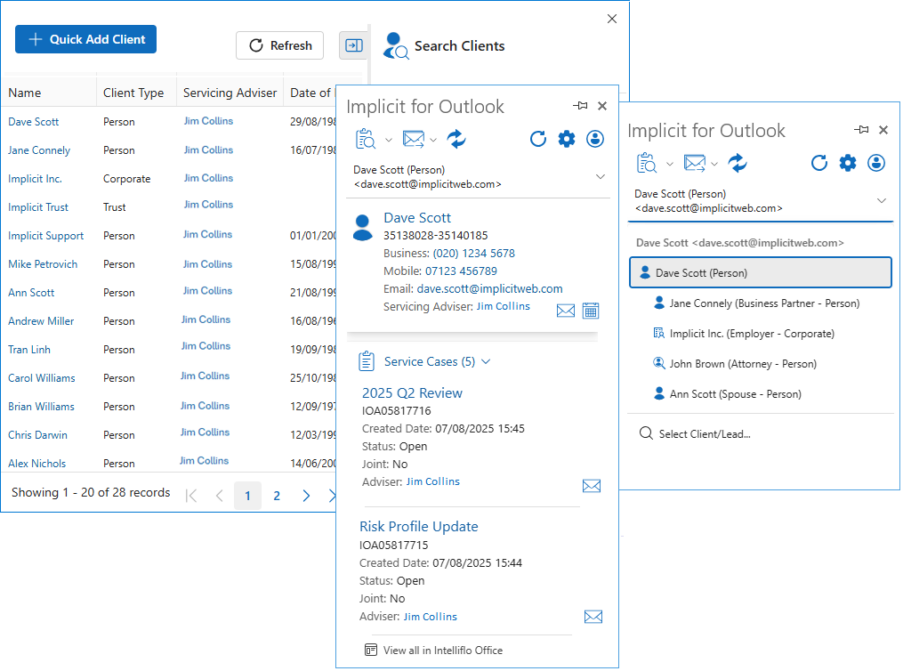
Implicit Outlook integration for intelliflo office runs as a side-panel in Outlook alongside your emails, automatically identifying clients’ and leads email and providing immediate visibility and access to their intelliflo office records including recent business activities such as services cases, plans, tasks etc.
- Open and edit any record in intelliflo office by clicking on the record in the side-panel.
- Relate an email to a different client by simply selecting it from the ‘Related To’ list, search for client / lead or create a new client directly from Outlook.
- Archive Email to intelliflo office with one-click or use the advanced tool for more options and multi-record archiving.
- Browse and search intelliflo office records without leaving Outlook.
- Available when receiving / composing emails or sending meeting invites to clients/leads.

Browsing / Searching Records
Save time and access information faster, without leaving Outlook.
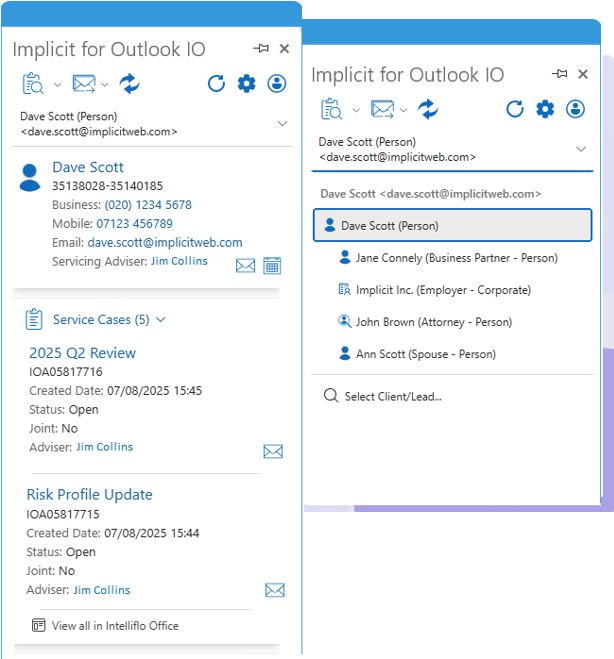
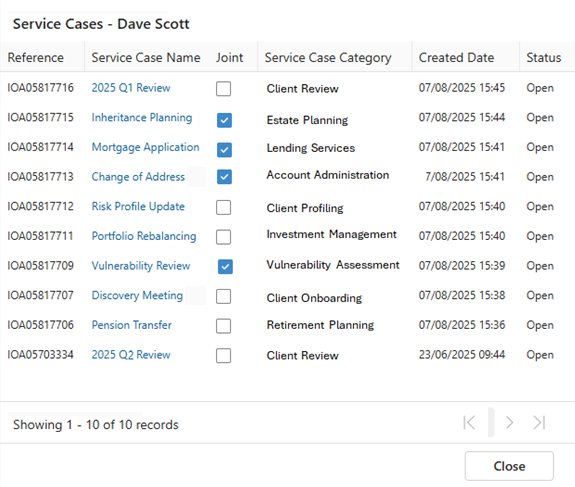
- Browse / Search clients, leads, service cases, plans, tasks and access any record directly from Outlook
- Easily switch and relate an email to a client’s record when the email is received from a person related to the client or when the email address is not found in intelliflo office.
Manual Email Archiving
Implicit facilitates the flow of input data from Outlook to intelliflo office by providing a variety of tools for both manual and automatic archiving of emails. These tools ensure that every client or lead interaction is accurately logged and easily traceable in intelliflo office. The tools include:
- One-click archiving of an email to an intelliflo office record via the side-panel
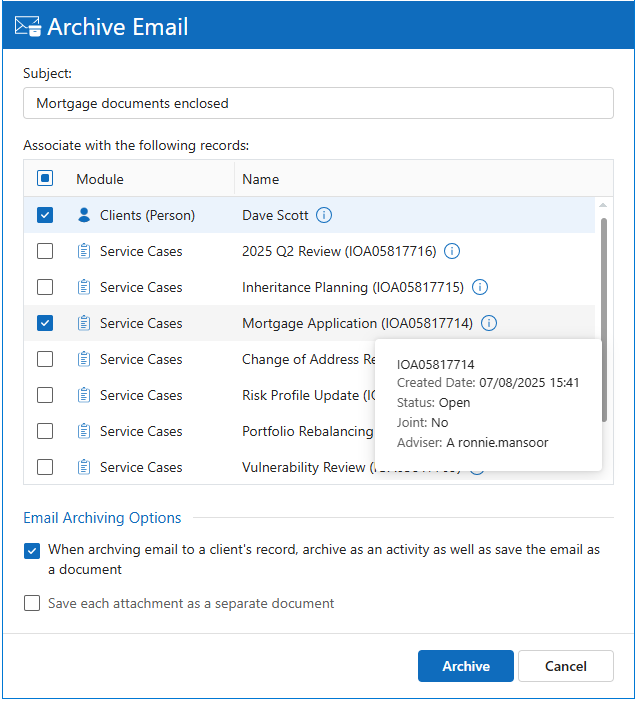
- Advanced archiving tool that allows you to customize the subject line, select to archive simultaneously to multiple records, and specify how email should be archived.
- You have the option of archiving email as a document in addition to archiving it as an activity in the client’s record. You can also choose to archive each attachment as a separate document.
- To ensure that you are archiving the email to the correct record, you can hover above the information icon next to the name, to see a summary of the record.
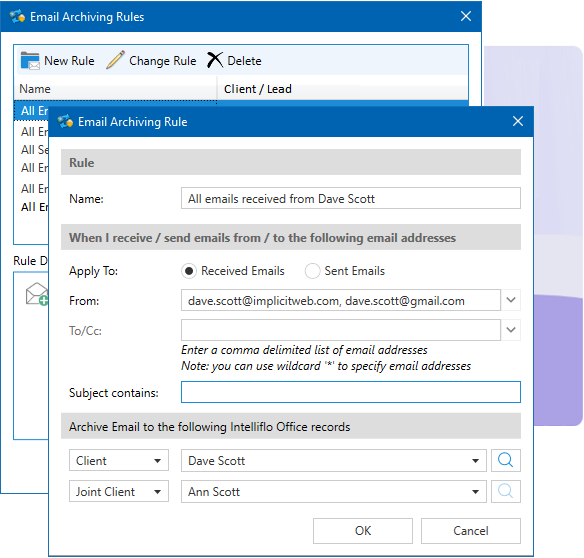
Auto-Email Archiving
Define custom rules to specify which inbound or outbound emails should be automatically archived to intelliflo office. Rules can be defined for:
- Selected clients/leads (from/to all email addresses defined in intelliflo office)
- An individual (specify email address)
- A company (specify domain name)
- Corporate-level rules for all clients or all leads.
- Define your own custom rules or enforce corporate-level rules
- Corporate-level rules are configured by intelliflo office admin at each organization. Admin can select whether to allow users to create their own rules.
Syncing Calendars
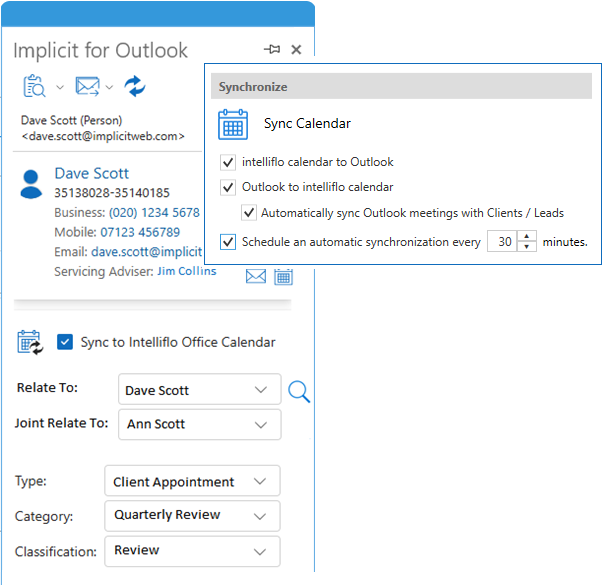
Implicit enables users to keep their Outlook / Teams and intelliflo office calendars in full two-way sync.
- You can choose to sync appointments in one direction or both.
- Synchronization can be configured to run periodically in the background and can also be triggered manually by users.
- You can select automatic sync of all Outlook meetings when intelliflo office clients / leads are included in the list of meeting participants.
- When sending a meeting invite from Outlook, the side-panel allows you to manually mark it for synchronization and specify an appointment type, category and classification.
- Both single appointments and recurring series are supported.
Administration
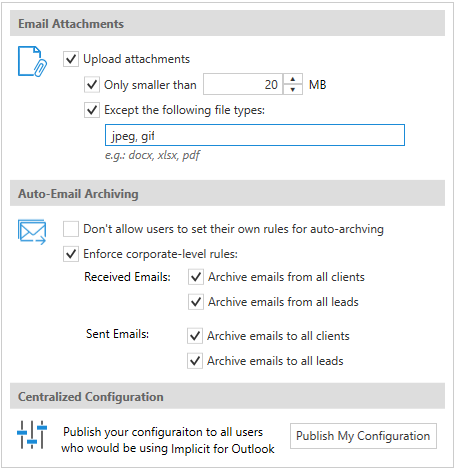
Administrators at each organization can enforce corporate level policies related to emails and attachments archiving in intelliflo office.
- Archive attachments and limit them by size and by the file type.
- Automatically archive all received or sent emails from clients or leads
- Prevent users from creating their own custom archiving rules.
- Enforce calendar sync from intelliflo office to Outlook and vice versa, or a two-way sync
- Admin can change the settings at any time and re-publish the configuration to all users.