BOOST PRODUCTIVITY & ENHANCE CLIENT ENGAGEMENT
Seamless integration with Outlook
The new Outlook integration extends the intelliflo office user experience and seamlessly blends into advisors’ daily use of Outlook.

Save Time & Boost Productivity
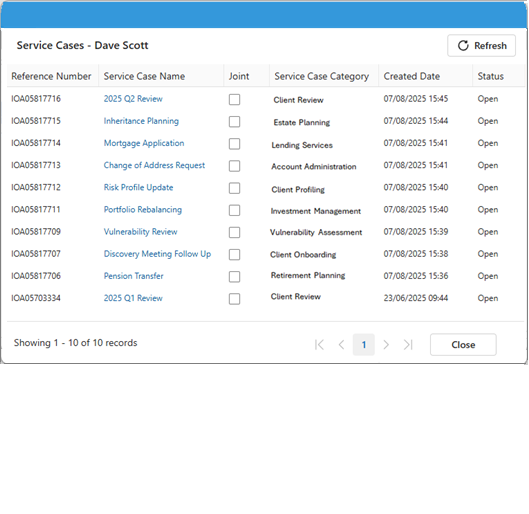
A side-panel in Outlook automatically identifies clients’ and leads’ emails and provides instant visibility and access to their records and recent business activities.

Streamline & Automate Data Entry
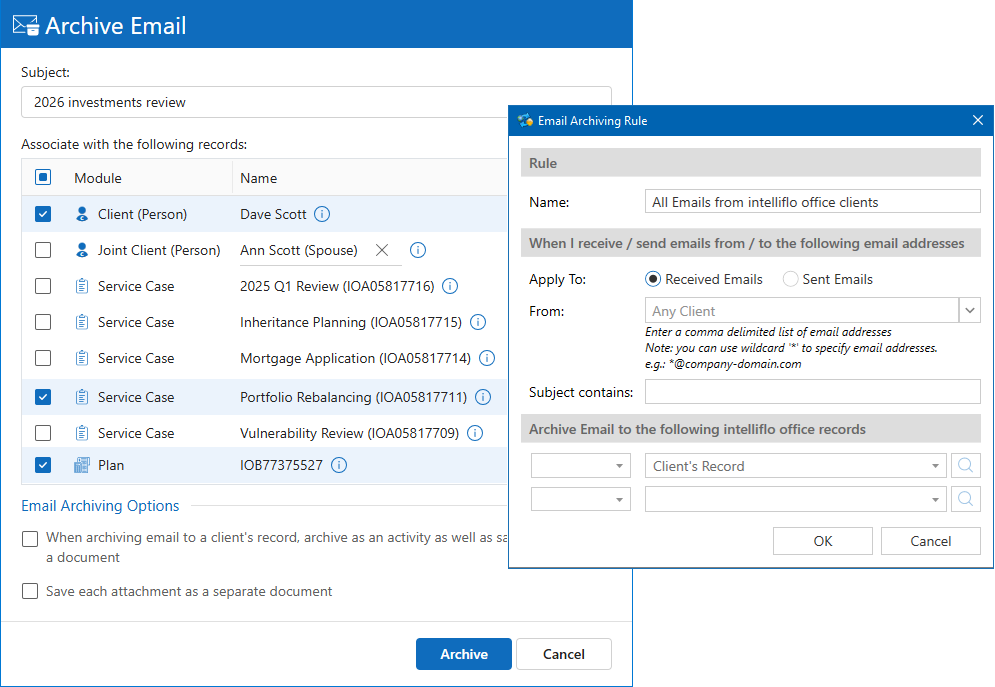
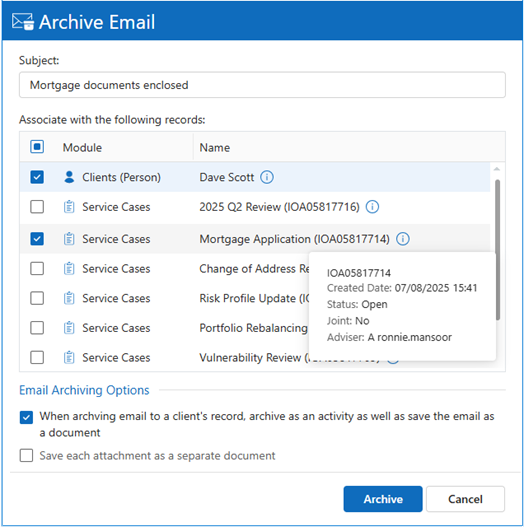
Manual and automated tools for archiving clients’ email correspondence and documents in intelliflo office. Save time, minimize manual work, and ensure every client interaction is accurately logged and easily traceable.

Rule-Based Auto-Email Archiving
Create your own custom rules, or enforce corporate-level rules, for automatically archiving clients’ and leads’ emails in intelliflo office.

Centralized Configuration
In addition to user-level configuration, your IO admin can centrally configure options for all users at your firm, including manual and auto-email archiving options, calendar sync options, etc.

Keep Calendars in Full Two-Way Sync
Outlook / Teams and intelliflo office calendars are fully and bi-directionally synchronized — manual or automatic sync of selected or all meetings with clients and leads.

Centrally Install & Manage
The Outlook add-in is installed centrally on the corporate 365 account or users’ personal accounts. Manage users through the Microsoft 365 admin center.
USE OUTLOOK AS AN EXTENSION OF INTELLIFLO OFFICE
No extra steps, no learning curve,
just smarter work
Respond faster and more effectively to clients’ emails by having instant visibility into their intelliflo office records and history right at your fingertips in Outlook.
FAQ
Frequently Asked Questions
Where is the software installed?
Intelliflo Outlook integration consists of two components:
Implicit Outlook Add-in — Installed on Microsoft 365 typically by your IT admin via the admin center on corporate accounts (it can also be installed by individual users on their individual 365 accounts). As part of the installation process, admin can select the users or groups who are given access to the add-in.
Implicit Desktop App — Works tightly in conjunction with the Outlook add-in and offers features such as calendar sync and auto-email archiving. The desktop app is installed by users directly from the add-in, or deployed centrally by administrators using tools such as Microsoft 365 Intune to deploy MSIs to a pre-defined group of Implicit users.
What platforms are supported?
The following platforms are supported:
- Microsoft 365 Business Basic / Standard / Premium or Enterprise
- Microsoft Personal 365
- Windows 11, Windows 10, Windows Server 2025/2022/2019/2016
- Microsoft Outlook for Windows — Classic and New
- Microsoft Outlook for Mac (Parallels Desktop is required)
- Microsoft RDS, Azure Virtual Desktop (AVD), Citrix, VDI
What admin roles are required to install the Outlook add-in on Microsoft 365?
To install the add-in via the admin center, you need to be signed in as a Global Administrator or Exchange Administrator.
How do I get started?
Please review the installation guide titled “Installing Implicit Outlook Integration for intelliflo office”. This guide will help you decide what version of the software to install and which installation guide to follow, based on your IT infrastructure and whether or not you have access to an IT admin.
I am IT admin. What steps should I follow to install the software?
If you are the IT admin, please start by reviewing the instructions at: “Installing Implicit Outlook Integration for intelliflo office”.
Here are the steps that an IT admin should follow to install the software:
- Start by identifying the software version that you need to install:
- If your IT infrastructure is not based on an RDS platform such as Citrix, Remote Desktop, or VDI platforms, use this IT Admin Installation Guide.
- If your IT infrastructure is based on an RDS platform, use this IT Admin RDS Installation Guide.
- Deploy Implicit Desktop App to users’ desktops.
- Grant Implicit Desktop App permissions to access Microsoft 365.
- Deploy the Outlook add-in via Admin Center.
Each of these steps is defined in detail in the admin guide above.
My IT admin has installed the Outlook add-in on Microsoft 365 and the Implicit Desktop App on my desktop. What now?
Once both software components are installed, please review the User Guide and follow these steps:
- Make sure the Outlook add-in has been deployed to your Outlook. If you are able to see the “Implicit for Outlook” button on your Outlook toolbar, that means it has been deployed and is ready. Otherwise, you may need to wait about 48–72 hours after your admin has installed it on Microsoft 365 for it to show up in your Outlook. If you still don’t see it, please confirm with your admin that you are included in the list of users who have been granted access to the add-in.
- Make sure the Implicit Desktop App has been deployed to your desktop. You should be able to see it if you click on the up arrow on the bottom-right of the screen (where the clock is). Typically when it is installed, a ‘Welcome’ screen will show up and prompt you to sign in to your Microsoft 365 and to your intelliflo office accounts in order to link the two accounts. You can also force it to show up by clicking on the Implicit icon on the taskbar.
- If the ‘Welcome’ screen shows up, please follow the instructions at: Linking your Microsoft 365 and intelliflo office accounts.
- When you’re done, launch Outlook and click the “Implicit for Outlook” button on your Outlook toolbar to open the side-panel. Follow the instructions on the screen.
- To start using “Implicit for Outlook,” select an email from a client (make sure the email address is defined in intelliflo office). You should see the client’s information in the side-panel.
- Finally, click on the Options button on the side-panel (gear icon) to go to Options and configure the software.
I have questions about GDPR, privacy, security, etc. Where can I get these questions answered?
Please review our Privacy and Security FAQ. If you have any additional questions, we would be happy to answer them. Please contact us at iosupport@implicitweb.com.
Stay in Outlook. We'll bring intelliflo office to you.
See the full integration in a live demo, or get started directly from the intelliflo store.