Introduction
Overview
Implicit for Outlook Desktop App is a Windows taskbar application that works in conjunction with the Outlook add-in to augment its functionality with background processing. It provides the following functionality:
- Synchronization of Outlook and intelliflo office calendars
- Rule-based auto-email archiving.
The desktop app can be installed by users on their own desktops or by administrators using silent network-based software deployment tools.
Trademarks
Implicit, the Implicit Logo, Implicit for Outlook, Implicit for Teams and combinations thereof are trademarks of Implicit Inc.
intelliflo, intelliflo office, intelliflo store are a registered trademark of Intelliflo limited.
Microsoft, Microsoft Office, Microsoft Outlook, Microsoft Teams, Microsoft 365, and Windows are registered trademarks of Microsoft Corporation.
Other product names used in this publication are for identification purposes only and may be trademarks of their respective companies.
Disclaimer
The contents of this document are provided in connection with Implicit Inc. (“IMPLICIT”) and Implicit for Outlook product. IMPLICIT makes no representations or warranties with respect to the accuracy or completeness of the contents of this publication and reserves the right to make changes to specifications and product descriptions at any time without notice. No license, whether express, implied, arising by estoppel, or otherwise, to any intellectual property rights are granted by this publication. Except as set forth in Implicit for Outlook License Agreement, IMPLICIT assumes no liability whatsoever, and disclaims any express or implied warranty, relating to its products including, but not limited to, the implied warranty of merchantability, fitness for a particular purpose, or infringement of any intellectual property right. IMPLICIT’s products are not designed, intended, authorized or warranted for use as components in applications intended to support or sustain life, or in any other application in which the failure of IMPLCIT’s product could create a situation where personal injury, death, or severe property or environmental damage may occur. IMPLICIT reserves the right to discontinue or make changes to its products at any time without notice.
Supported Platforms
- Microsoft 365
- Microsoft Outlook on Windows (Windows 11, Windows 10, Windows Server 2019, Windows Server 2016, Windows Server 2012 R2)
Admin Installation
Getting Started
To accommodate different corporate software deployment policies and users’ permissions, Implicit provides multiple ways for installing the two components of Implicit for Outlook.
Step 1: Installing Implicit for Outlook Add-in on Microsoft 365
Implicit for Outlook Add-in is installed on Microsoft 365. We highly recommend that it should be installed and managed by an administrator on the Microsoft 365 corporate account, so it is accessible to all users rather than individual user accounts.
A step-by-step process for installing Implicit for Outlook add-in via Microsoft 365 admin center is described in Microsoft 365 add-in Installation for Admins.
Step 2: Granting Permissions on Microsoft 365
The next step is to grant Implicit for Outlook permissions to access data on users’ 365 mailboxes. The required permissions are:
- Access to users’ calendars – to sync with intelliflo office diary.
- Access to users’ mail – to read emails from users’ mailboxes and archive them in intelliflo office. Write permissions are also required in order to mark emails that have been archived.
To grant permissions on behalf of users, click the following link: Grant Permissions on Microsoft 365
Step 3: Deploying Implicit for Outlook Desktop App
There are two types of deployments of Implicit Desktop App:
User-Level Installation (directly from the Outlook Add-in): This is the simplest, easiest and recommended method to install the Implicit desktop app. Upon the initial configuration of the Outlook Add-in, users are prompted to download and install the app. However, it requires that users have permission to install applications on their desktop.
Administrator Deployment (Central IT admin installation): IT administrators can deploy the Implicit for Outlook desktop app centrally in one of the following scenarios:
- If your organization utilizes software deployment tools such as Microsoft System Center Configuration Manager (SCCM) or Microsoft Endpoint Manager (Intune) that push MSI installers silently over the network.
- If you are using Citrix or Remote Desktop (RDS) platforms – You can install the application on the session host servers, either manually or using centralized deployment tools
To deploy the app centrally over the network, please see: Network Deployment of the Implicit Desktop App
Microsoft 365 add-in Installation for Admins
This section outlines the step-by-step process for deploying Implicit for Outlook add-in organization-wide using the Microsoft 365 admin center.
Prerequisites
Before proceeding, ensure that you are signed in as a Global Administrator or Exchange Administrator in Microsoft 365.
Steps to Install the Implicit for Outlook Add-in
Step 1: Sign in with your administrator credentials to Microsoft 365 Admin Center by going to https://admin.microsoft.com.
Step 2: Access Integrated Apps
1. In the left-hand navigation panel, expand Settings and click Integrated apps.

Step 3: Search Microsoft AppSource
- Click ‘Add from the store’ to open the AppSource marketplace.
- In the Search box, enter “Implicit for Outlook”
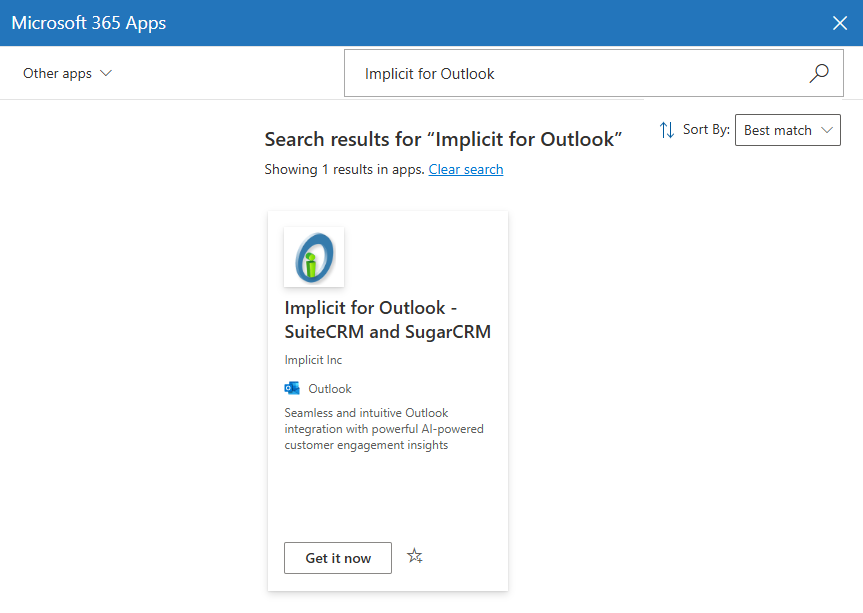
- Click the Implicit for Outlook add-in’s card to view details.
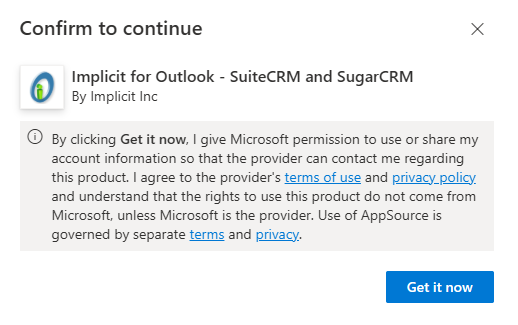
- Click ‘Get it Now’.
- Confirm and click ‘Get it Now’.
Confirming the add-in is accessible from Outlook
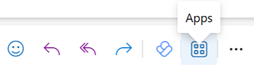
Launch a browser and go to Microsoft 365 online. Sign in to Microsoft 365 and select Outlook app. Select an email message from Inbox. In the preview Window of the email, locate the ‘Apps’ button on the actions toolbar at the top-right of the email (next to the email header) as shown below:
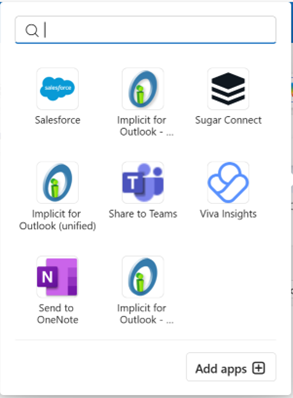
Click the Apps button and make sure Implicit for Outlook add-in shows up in the list of available apps:
Note: It can take up to 24 hours for Microsoft 365 to refresh itself and for the Implicit for Outlook app to appear on the ribbon in Outlook and as an available App in a browser for Outlook online.
Sign in to Microsoft Outlook as a user. If you are already signed in, please sign out and sign in again.
When Implicit for Outlook has been deployed to Outlook, it will appear on the ribbon in Outlook as shown below:

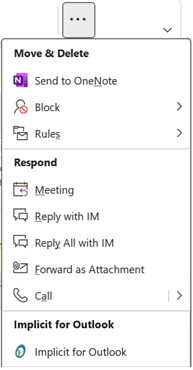
Note: Depending on the number of buttons you have configured on your Outlook ribbon, the Implicit button may also show up on the ‘More Commands’ (‘…’) button as show below:
Network Deployment of the Implicit Desktop App
The simplest and easiest method to install the Implicit desktop app, is for users to download and install it directly from the Outlook add-in. However, if your organization does not allow users to install software on their desktop, then you would need to push the installation centrally over the network. This is done using software deployment tools such as Microsoft System Center Configuration Manager (SCCM), Active Directory Group Policy or Microsoft Endpoint Manager (Intune) that push MSI installers silently over then network.
The process consists of two steps:
Step 1: Installing pre-requisite: .NET 8.0 Desktop Runtime. Please ensure that you have the latest .NET 8.x desktop runtime version:
https://dotnet.microsoft.com/en-us/download/dotnet/8.0
Step 2: Installing Implicit Desktop App using MSI files
For 64-bit PCs: Add link
For 32-bit PCs: Add link
After deploying the app, please ask users to run it by entering “Implicit for Outlook” in the Search Box in the Windows taskbar, and configure it by following the instructions described in Configuring Implicit Desktop App.
Note: If you are using Citrix or Remote Desktop (RDS) platforms – You can install the application on the session host servers, either manually or using centralized deployment tools.
User Installation
Getting Started
To accommodate different corporate software deployment policies and users’ permissions, Implicit provides multiple ways for installing the two components of Implicit for Outlook. This section describes the different options:
- Option 1- Recommended option. It is the easiest and applies to most users.
- Option 2 – Offered as an alternative if users have restricted permissions.
- Option 3 – Available for users in situations where no admin is involved.
Option 1 (Recommended): Implicit Outlook Add-in has been installed by your admin, and you have permissions to install Implicit Desktop App on your desktop
If the Outlook add-in has been installed by your admin and is visible in Outlook, your next step is to open the side-panel (click the Implicit for Outlook button) and configure the software. During this process you will be prompted to install the Implicit Desktop App on your desktop. If you have permission to install software on your desktop, please proceed to Configuring Implicit for Outlook add-in.
Note: If your administrator has installed the Outlook add-in and it’s not yet visible in Outlook, please wait. It may take up to 24 hours for the add-in to become visible in Outlook.
Option 2: Implicit Outlook Add-in has been installed by your admin, but you don’t have permissions to install Implicit Desktop App on your desktop
If you don’t have permission to install software on your desktop, please ask your admin to install Implicit Desktop App as described in Network Deployment of the Implicit Desktop App.
Once the Desktop App has been deployed by your admin, please do the following:
- Run it by entering “Implicit for Outlook” in the Search Box in the Windows taskbar.
- Follow the instructions described in Configuring Implicit Desktop App.
- Once the desktop app has been configured and your Microsoft 365 account is linked to your intelliflo office account, proceed with Configuring Implicit for Outlook add-in.
Option 3: Installing the Outlook Add-in on your personal 365 account
If you prefer to install the Outlook Add-in on your personal 365 account, please make sure that you have the required permissions to install Outlook add-ins on your personal account and follow the step-by-step instructions described in Microsoft 365 add-in Installation for Users section below.
Microsoft 365 add-in Installation for Users
To install the Implicit for Outlook add-in from Outlook, select the File tab and click ‘Manage Add-Ins’
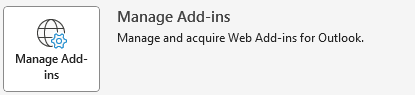
Outlook will launch a browser and prompt you to login to your Microsoft 365 account. It will present you with a list of available Outlook add-ins.
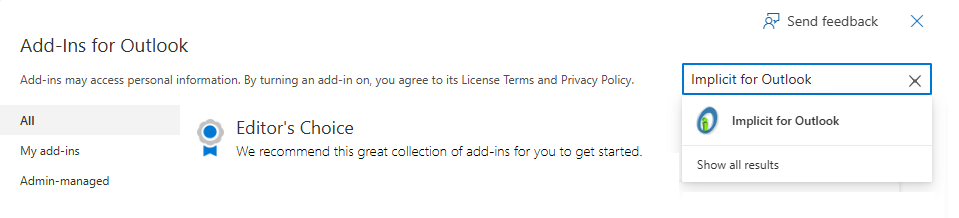
In the search add-ins box, enter “Implicit for Outlook”. The Implicit add-in will show up in a drop-down list under the search box. Select it. Microsoft App store will display the Implicit for Outlook page. Select it and click ‘Add’.
Accept the license terms and privacy policy and click ‘Continue’.
Confirming the add-in is accessible from Outlook
Note: It can take up to 24 hours for Microsoft 365 to refresh itself and for the Implicit for Outlook app to appear on the ribbon in Outlook and as an available App in a browser for Outlook online.
Launch a browser and go to Microsoft 365 online. Sign in to Microsoft 365 and select Outlook app. Select an email message from Inbox. In the preview Window of the email, locate the ‘Apps’ button on the actions toolbar at the top-right of the email (next to the email header) as shown below:
Click the Apps button and make sure Implicit for Outlook add-in shows up in the list of available apps:
Sign in to Microsoft Outlook as a user. If you are already signed in, please sign out and sign in again.
When Implicit for Outlook has been deployed to Outlook, it will appear on the ribbon in Outlook as shown below:
Note: Depending on the number of buttons you have configured on your Outlook ribbon, the Implicit button may also show up on the ‘More Commands’ (‘…’) button as show below:
Configuring Implicit for Outlook add-in
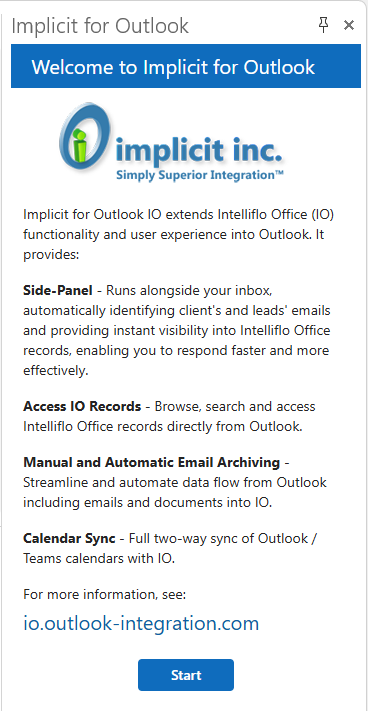
When the Implicit for Outlook add-in shows up in Outlook, click on Implicit for Outlook button on the Outlook toolbar to launch the side panel. The configuration wizard will walk you through the process.
Step 1. Welcome screen
Step 2. End User License Agreement
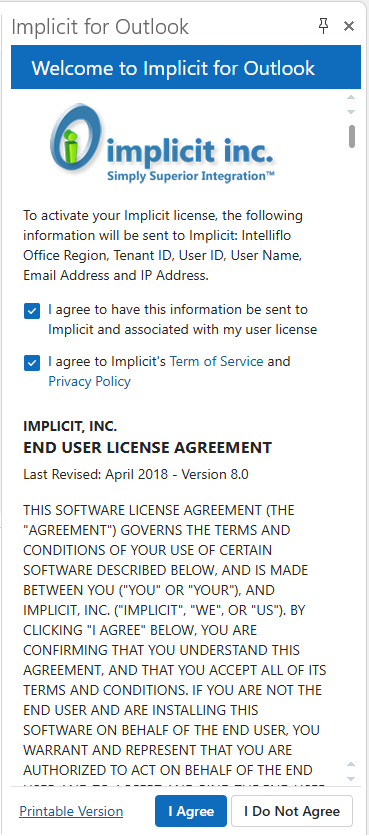
You will then be prompted to agree to Implicit’s Terms of Service, Privacy Policy and End User License Agreement and to give your consent to send your information (including private information) to Implicit Licensing server to be associated with your license:
- Please click the links to review Implicit’s Terms of Service and Privacy Policy. If you agree check the checkbox.
- The following information needs to be sent to Implicit to be associated with your Implicit license: your name, email address, your intelliflo office tenant ID, user ID, geographical region, and your IP address. If you agree to having this information sent to Implicit, please check the checkbox
- Please review the End User License Agreement (EULA) and if you agree, click “I Agree”.
If you don’t agree to any of these, please click “I Do Not Agree” to exit Implicit for Outlook.
Step 3. Implicit for Outlook Installation on Intelliflo Store
If you have not yet installed Implicit for Outlook on the Intelliflo Store, you will be prompted to install it now. Click the “Install it Now” button. You will be redirected to the Intelliflo Store to install the app.
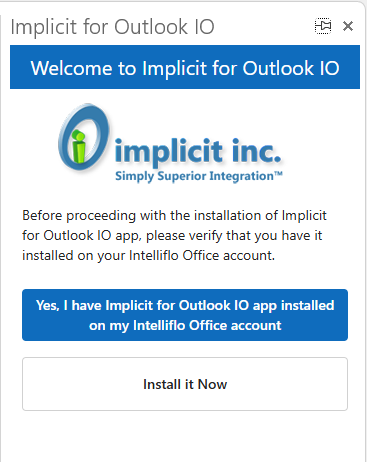
Note: The configuration wizard allows you to continue with the configuration process even if you have not yet installed the app. Your license will be checked again at the time of signing in to your intelliflo office account and you will need to have the app installed at that time.
Step 4. Implicit Desktop App
Next, you will be prompted to install the Implicit Desktop App.

Before proceeding with the installation of the Implicit Desktop App:
- Check if Implicit Desktop App had been previously installed on your desktop, or it has been centrally deployed by your admin, please run it now. If you are unsure, you can check by going to Windows Start Menu search box and typing “Implicit Desktop App”. If found, please run it and click “Implicit Desktop App is running now, try again” button below.
- This step requires you to have permission to install software on your desktop. If you don’t, the app will need to be installed by your administrator. Please contact your IT administrator and refer to section Implicit Desktop App Deployment.
If you have permissions to install application on your desktop, click the “Download and Install Implicit for Outlook Desktop App”.
Step 5. Downloading Implicit Desktop App
Next, you’ll be prompted to download the Implicit Desktop App.
Click the ‘Download Now’ button to launch a browser (Edge, Chrome etc.) window and download the installer executable file. you’ll notice the download process at the top-right corner of the browser. When the download completes, click ‘Open File’ to launch the installer.
Note: You can leave the Outlook side-panel at this point and proceed to install and configure the desktop app. Once, you’re done, go back to Outlook and click ‘Continue after Installation’.
Implicit Desktop App – User Installation
The installer wizard will walk you through a set of screens:
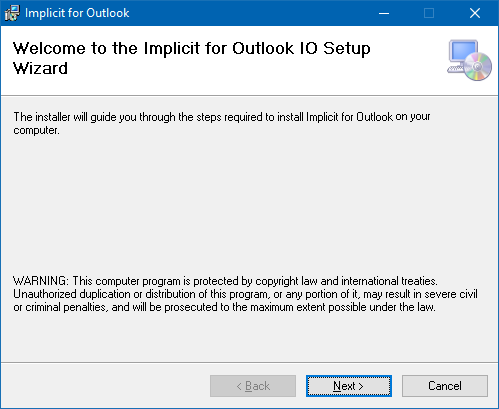
Click Next to continue. You will be prompted accept the Implicit EULA:
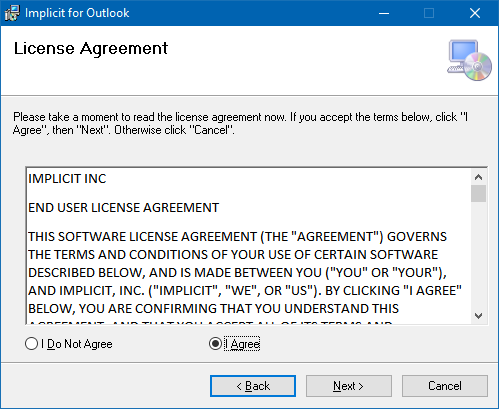
Next, you will be prompted to select the installation folder. By default, the installation folder will be set to: “Program FilesImplicitImplicit for Outlook”. Choose Browse to select a different folder. Then click ‘Next’.
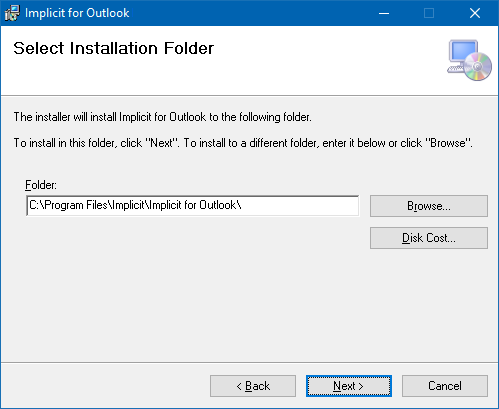
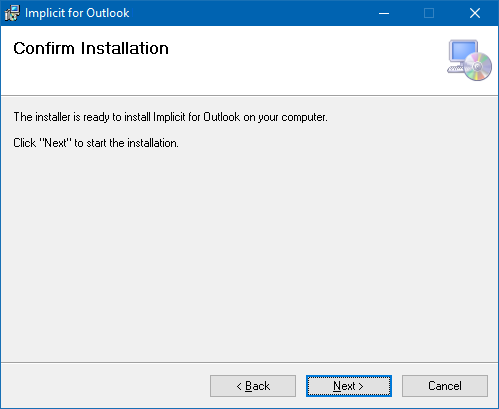
Next, the installer will be prompt you to confirm the installation and start copying the files.
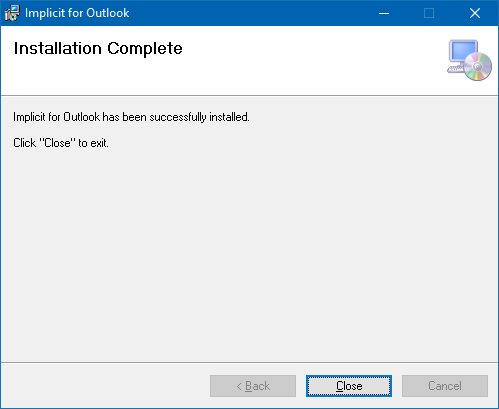
Upon completion it will launch the configuration tool.
Configuring Implicit Desktop App
Step 1. End User License Agreement
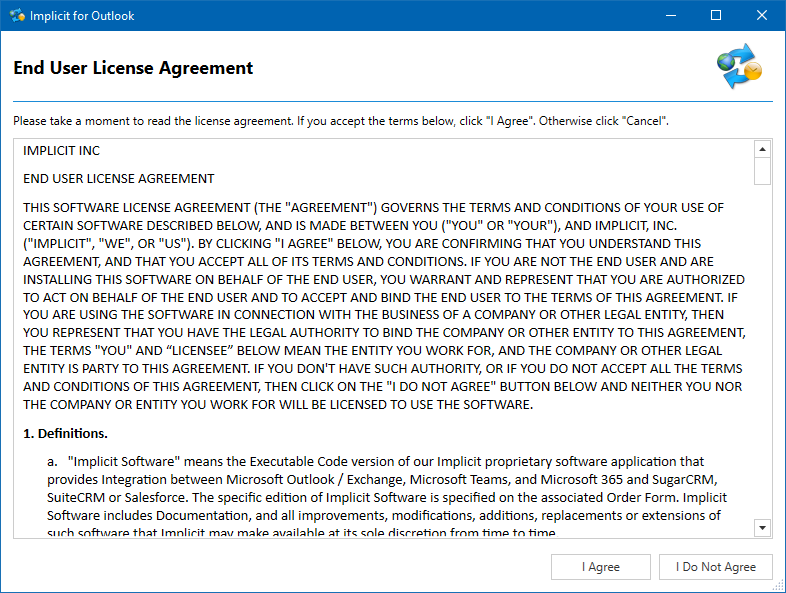
Next, you’ll be prompted to accept the EULA agreement. Please review it carefully and if you accept, click “I Agree”. Otherwise, click “I Don’t Agree” to exit Implicit Desktop App.
Step 2. Welcome screen
This step links your Microsoft 365 account with your intelliflo office account.
You’ll need to once again agree to Implicit’s Terms of Service and Privacy Policy and give your consent to sending some of your private information to Implicit. This information includes: your intelliflo office Tenant ID (which identifies your organization), your intelliflo office user ID, your name, email address and your IP address.
This is necessary because the desktop app can be installed centrally by an administrator and Implicit needs to verify that the consent is given by the actual Microsoft and intelliflo office user.
Please review the private information that needs to be sent to Implicit to be associated with your license and check the checkbox to give your consent. Also, please review Implicit’s Terms of Service and Privacy Policy and check the checkbox to indicate that you agree.
If you don’t agree to any of these, please click “Cancel” to exit Implicit Desktop App.
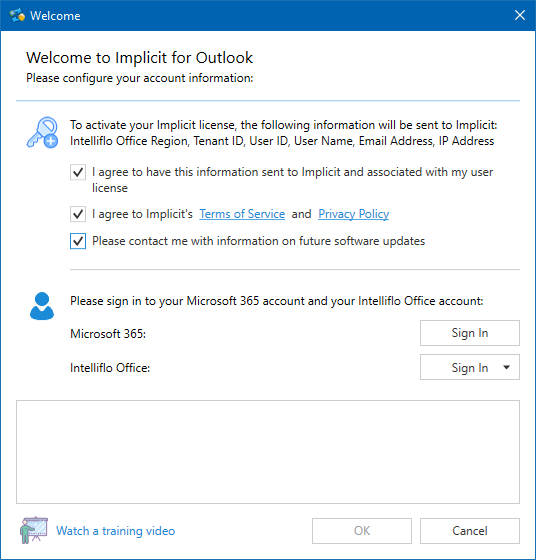
Next, click the “Sign In” button, to sign in to your Microsoft 365 account. This is the account you will be using in Outlook. You will be prompted to login to Microsoft 365 and if successful, your email address will be displayed.
Similarly, click the “Sign In” button, to sign in to your intelliflo office account. You will then be prompted to grant permission to Implicit for Outlook to access certain personal and financial data in order to provide you with access to this data from within Outlook. If you agree, click “Yes, allow”, otherwise click “No, Do Not Allow”. If you successfully signed in to intelliflo office and granted the required permissions, your intelliflo office user ID will be displayed on the dialog next to the Sign In button. When both your intelliflo office user ID and your Microsoft 365 email address are displayed, that means that you have successfully completed the installation of Implicit Desktop App and your intelliflo office account is now linked to your Microsoft 365 account.
Click OK to exit. The following message will show up on the bottom-right side of the screen above the Windows taskbar.
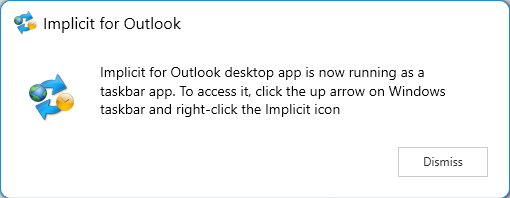
Note: The app will run as a background Windows taskbar application and synchronizes data between Outlook and intelliflo office. If at any time it is stopped, please run it again by entering “Implicit for Outlook” in the Search Box in the Windows taskbar.
Step 3. Final Step – Going Back to Outlook
Go back to Outlook where you left off. The side-panel shows the screen where you downloaded the desktop app.
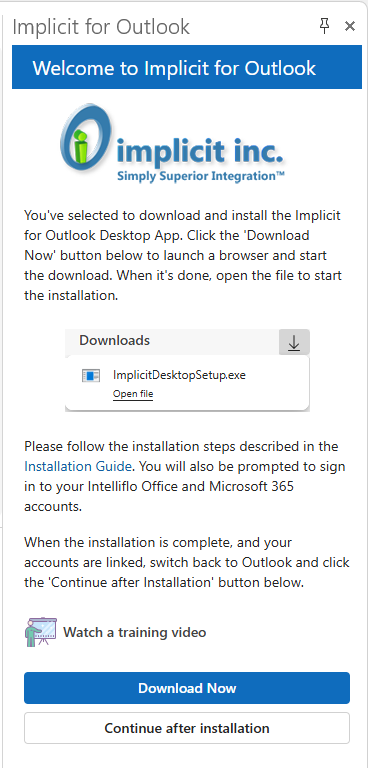
Click ‘Continue after Installation’. The side panel will display final confirmation screen that confirms that Implicit for Outlook add-in and desktop app have been successfully installed and configured and you are ready to use the Outlook integration.
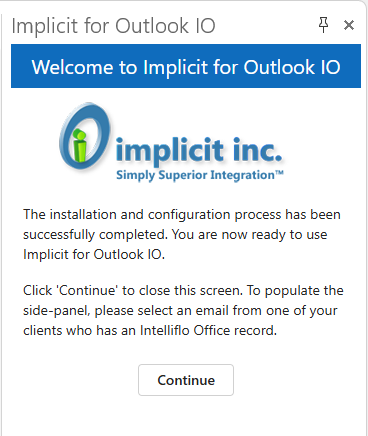
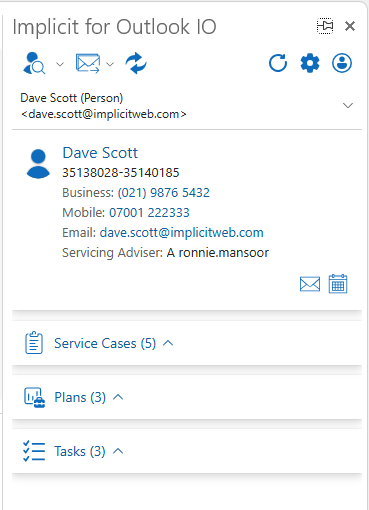
To make sure the integration is working, select an email from an intelliflo office client and you should see the side panel populated with the client’s information as in the following example:
You are now ready to proceed with the User Guide.